

Magento

What is Magento?
Magento is an open-source ecommerce platform. It is used to create and manage online stores, offering advanced customization, full control over design, product management, and payment processing. It is ideal for companies that need scalable and flexible solutions for their eCommerce.
Magento integration guide
To integrate OrkestaPay with the Magento platform, it is necessary to follow these steps:
1. Register an account
You must have a merchant account in OrkestaPay to carry out the integration.
2. Copy integration credentials
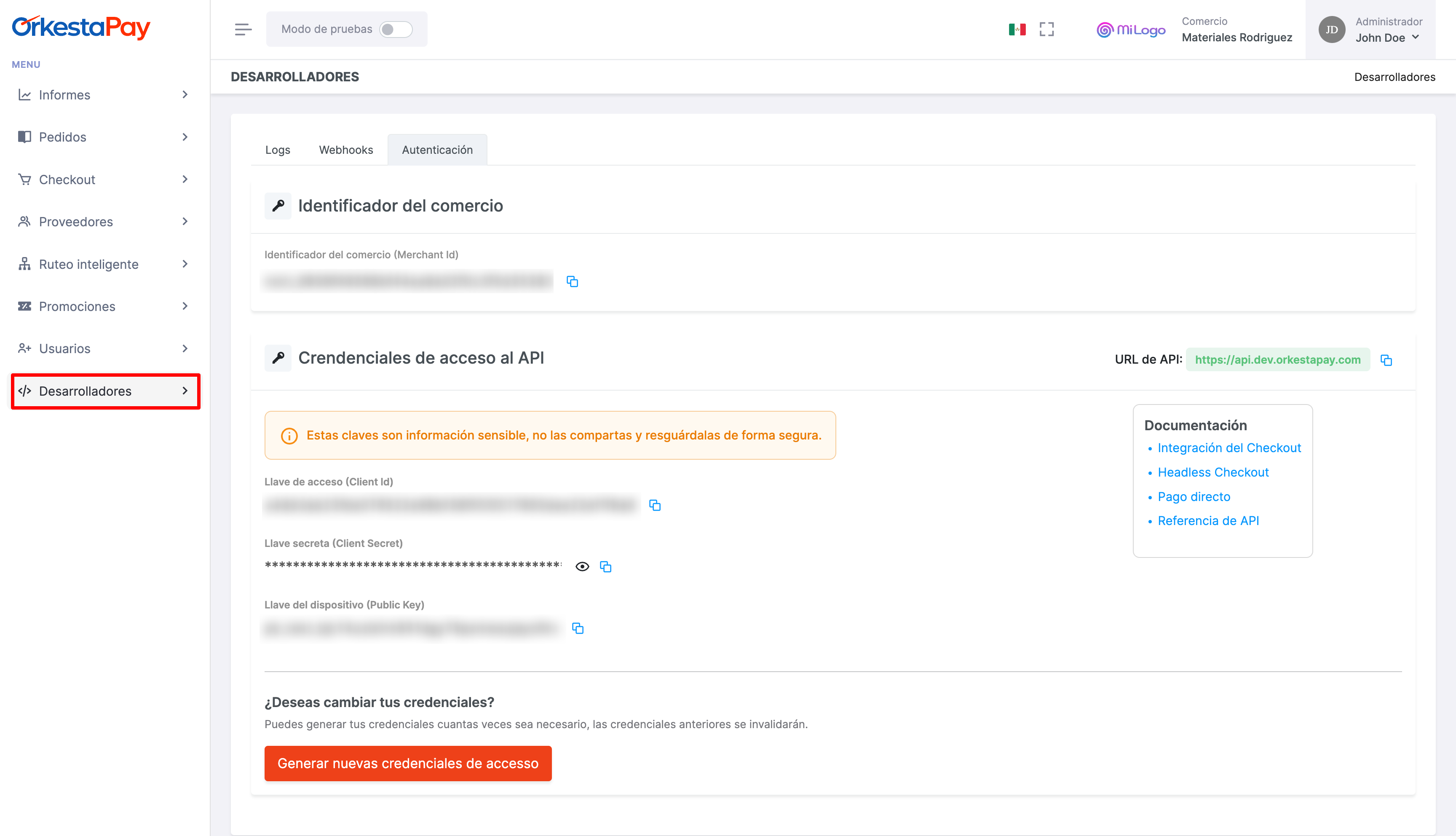
Once you have registered your account, go to the Developers section found as an option in the side menu.
You must copy and save the credentials shown on screen, as you will need to enter them in the plugin configuration screen later.
3. Install the Magento module
To install the module in your Magento installation, you need to access the command terminal and run the following commands in the root of your project.
composer require orkestapay/magento-cards
bin/magento module:enable Orkestapay_Cards --clear-static-content
bin/magento setup:upgrade
bin/magento cache:clean
Explanation:
composer require orkestapay/magento-cards: This command uses Composer, which is a dependency manager for PHP. This command downloads and installs the module package from the Composer repository.bin/magento module:enable Orkestapay_Cards --clear-static-content: This command enables the module in Magento and removes cached static content, such as previously generated CSS, JS, and HTML files.bin/magento setup:upgrade: Runs the installation or update scripts defined by the module.bin/magento cache:clean: Clears Magento's cached data so that recent changes are reflected correctly.
4. Module configuration
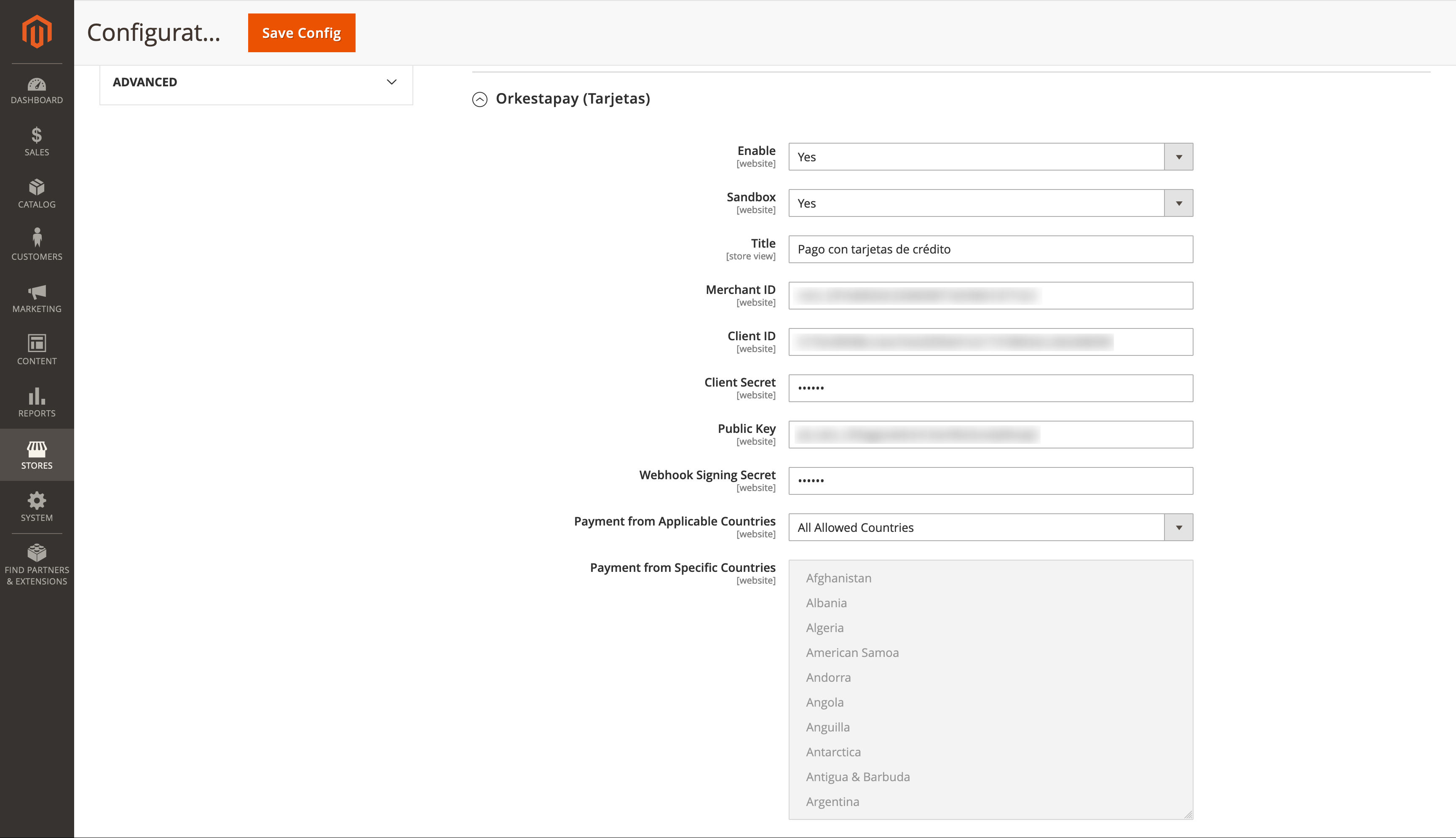
To configure the OrkestaPay module in your Magento platform, you must access the backoffice of your store and go to: Stores > Configuration > Sales > Payment methods.
Find the payment method under the name OrkestaPay and enter the credentials you obtained in step 2.
NOTE
We recommend initially enabling sandbox mode so that you can make test payments and verify the correct operation of your store.
Updated 4 months ago