

Account configuration
Getting Started
To start processing transactions with OrkestaPay, you must first complete a couple of configurations.
- Configure a payment provider
- Configure an orchestration route
Step 1: Configure a Payment Provider
Log in to the OrkestaPay portal and navigate to the "Providers" section. The main screen will display the list of providers you have already configured, or it will appear empty if none have been set up yet.
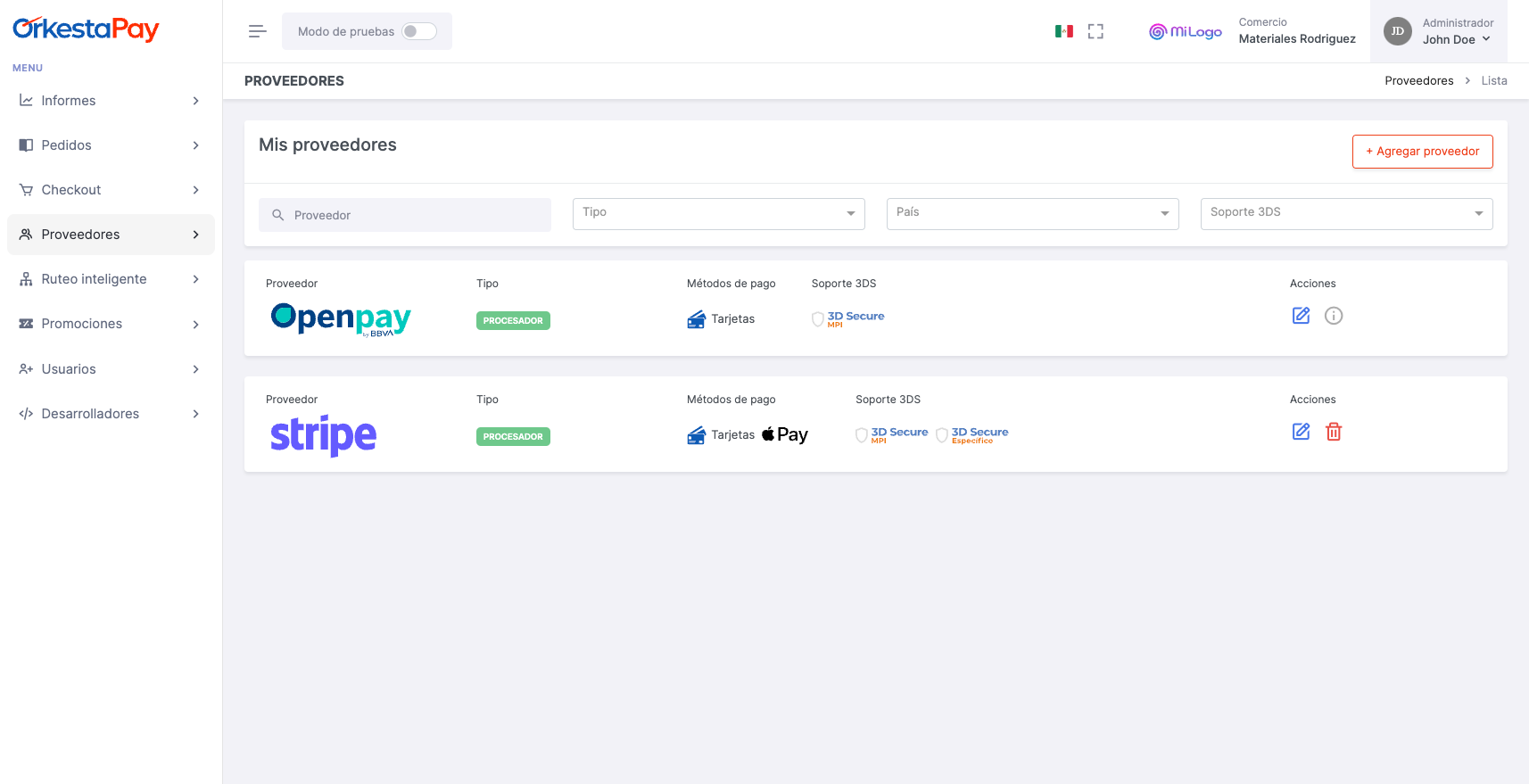
Register a New Payment Provider
To register a new provider, click the "Add Provider" button. A new screen will be displayed showing all the providers supported by OrkestaPay.
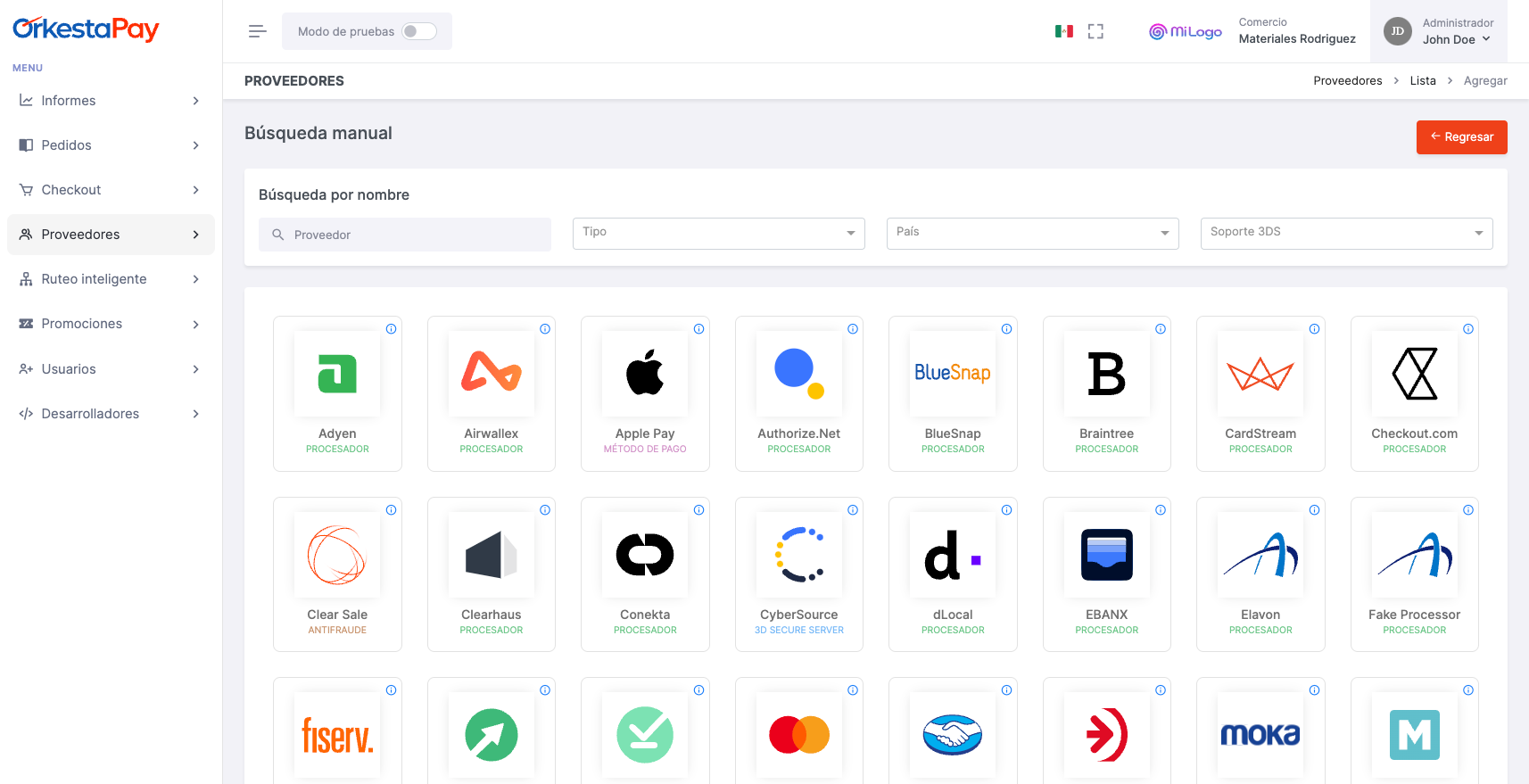
Click on the provider you want to use, configure the information required for proper operation, and save the changes.
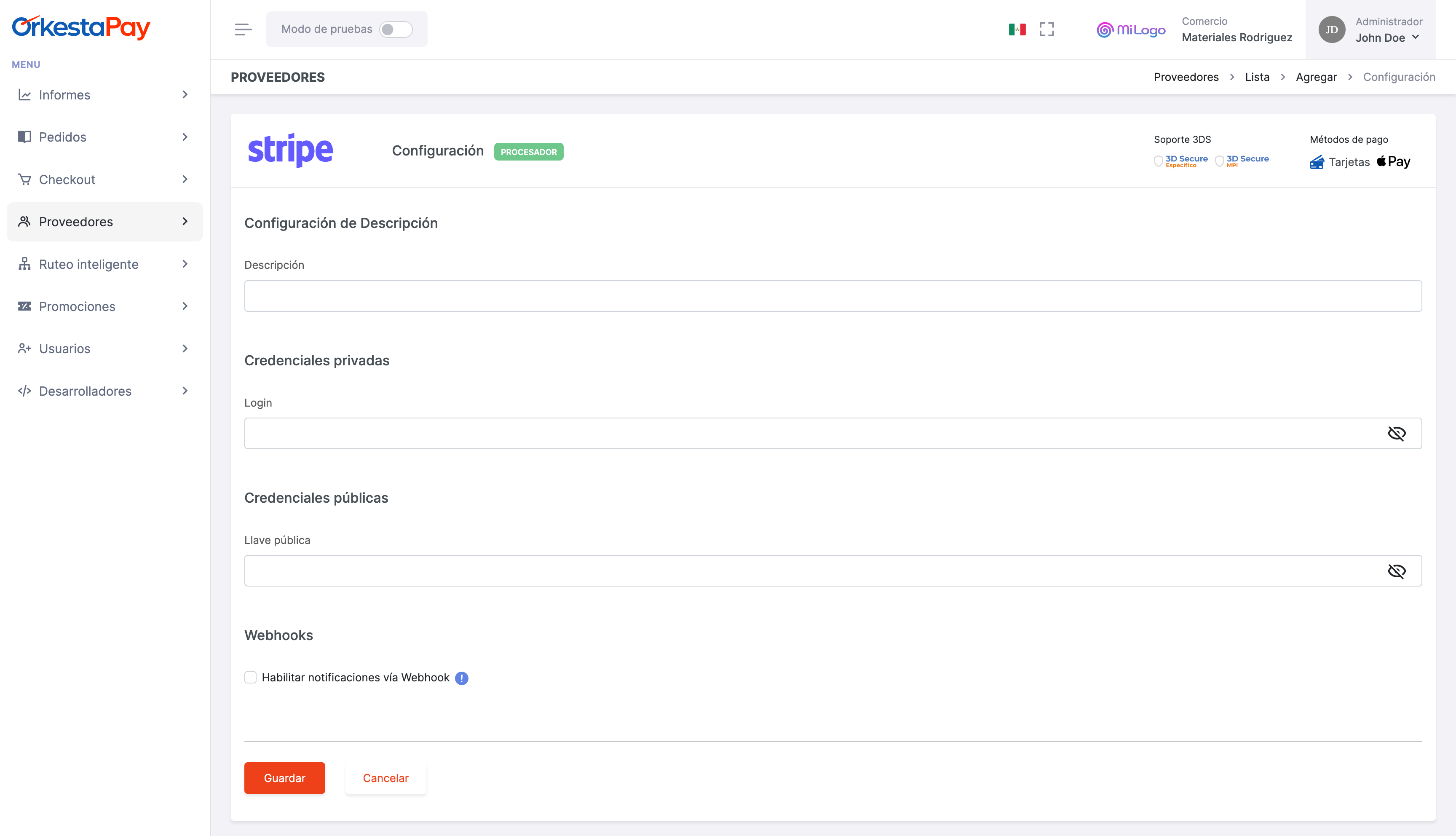
Step 2: Configure an Orchestration Route
To access this section, navigate to the "Smart Routing" menu option. In this section, you will be able to see the payment methods configured for each provider. For example, if you have added a card payment provider, the first time you access this section you will find the "Cards" payment method under the "Not Configured" tab.

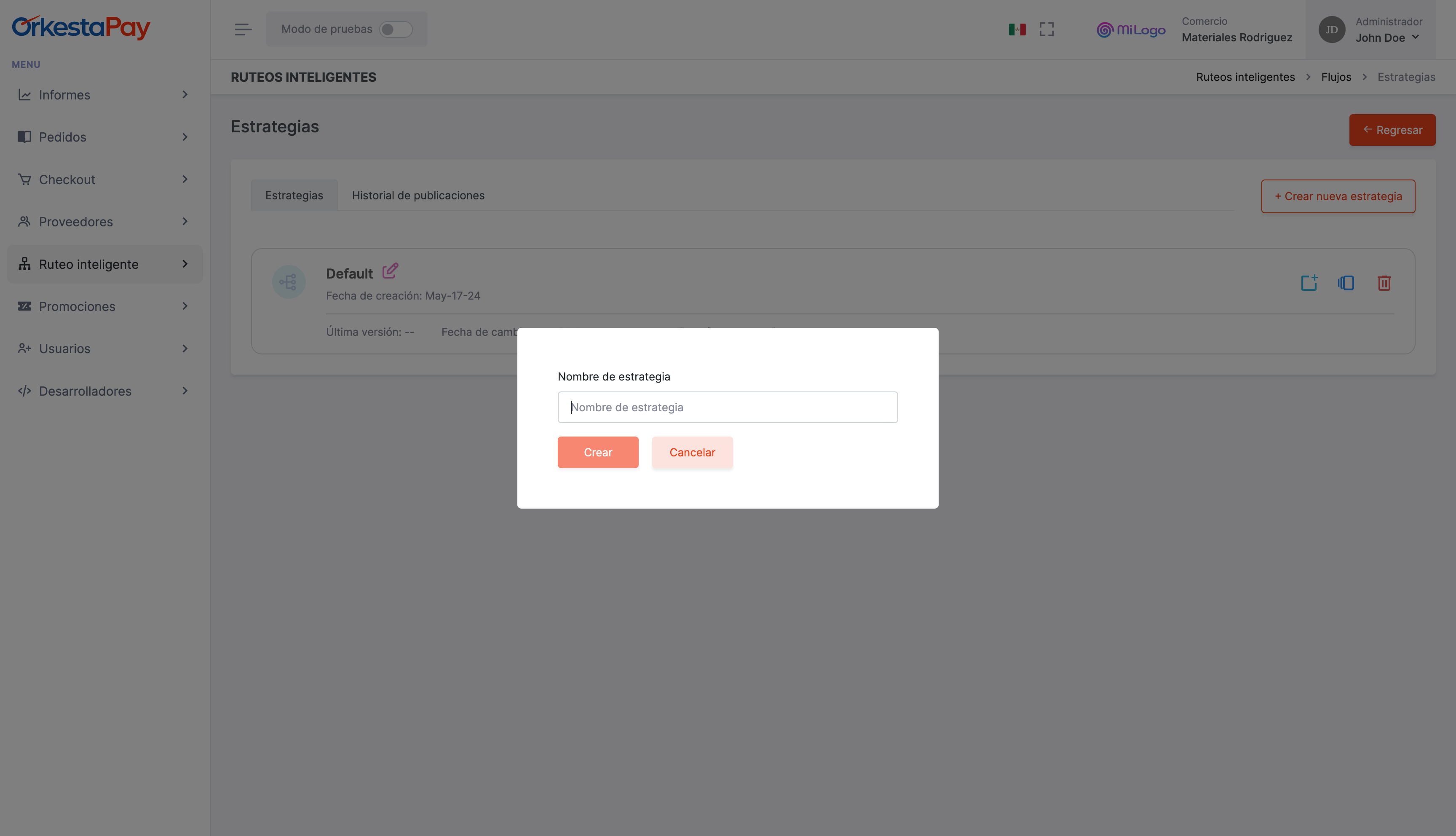
By clicking on the payment method, you can configure orchestration rules and strategies. To create a new strategy, click the "Create New Strategy" button.
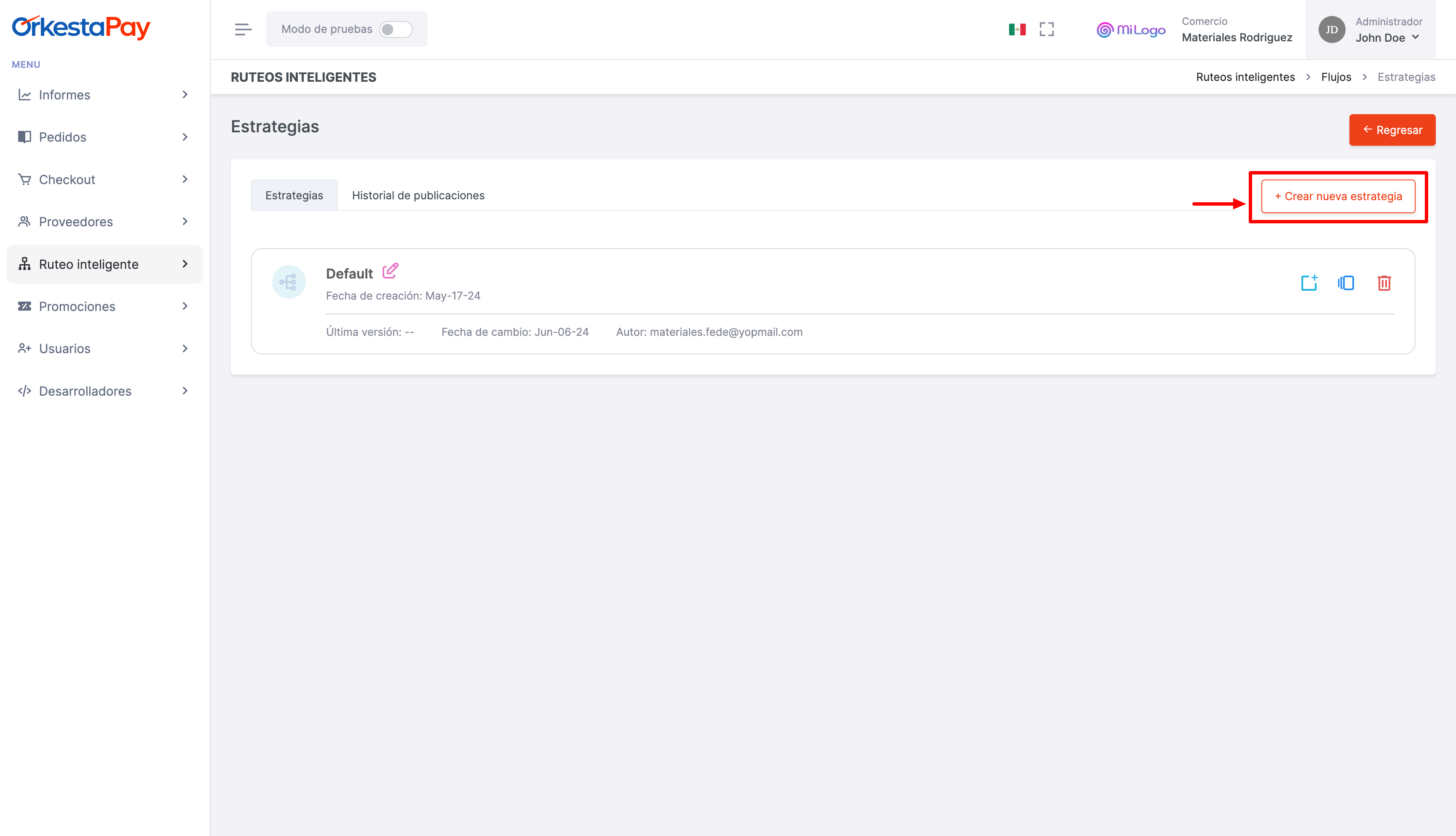
Enter a name for your strategy to continue configuring the orchestration routes.
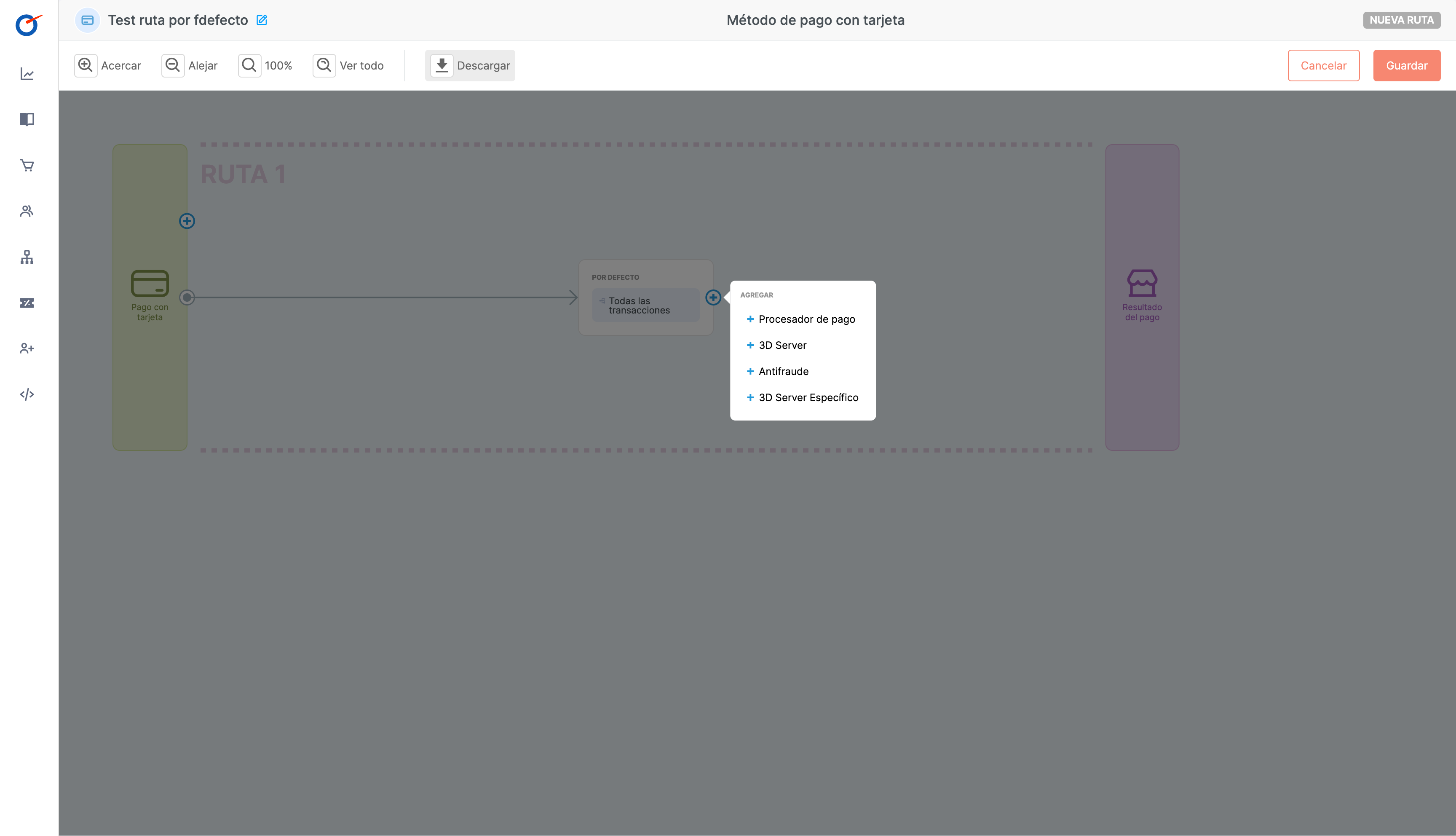
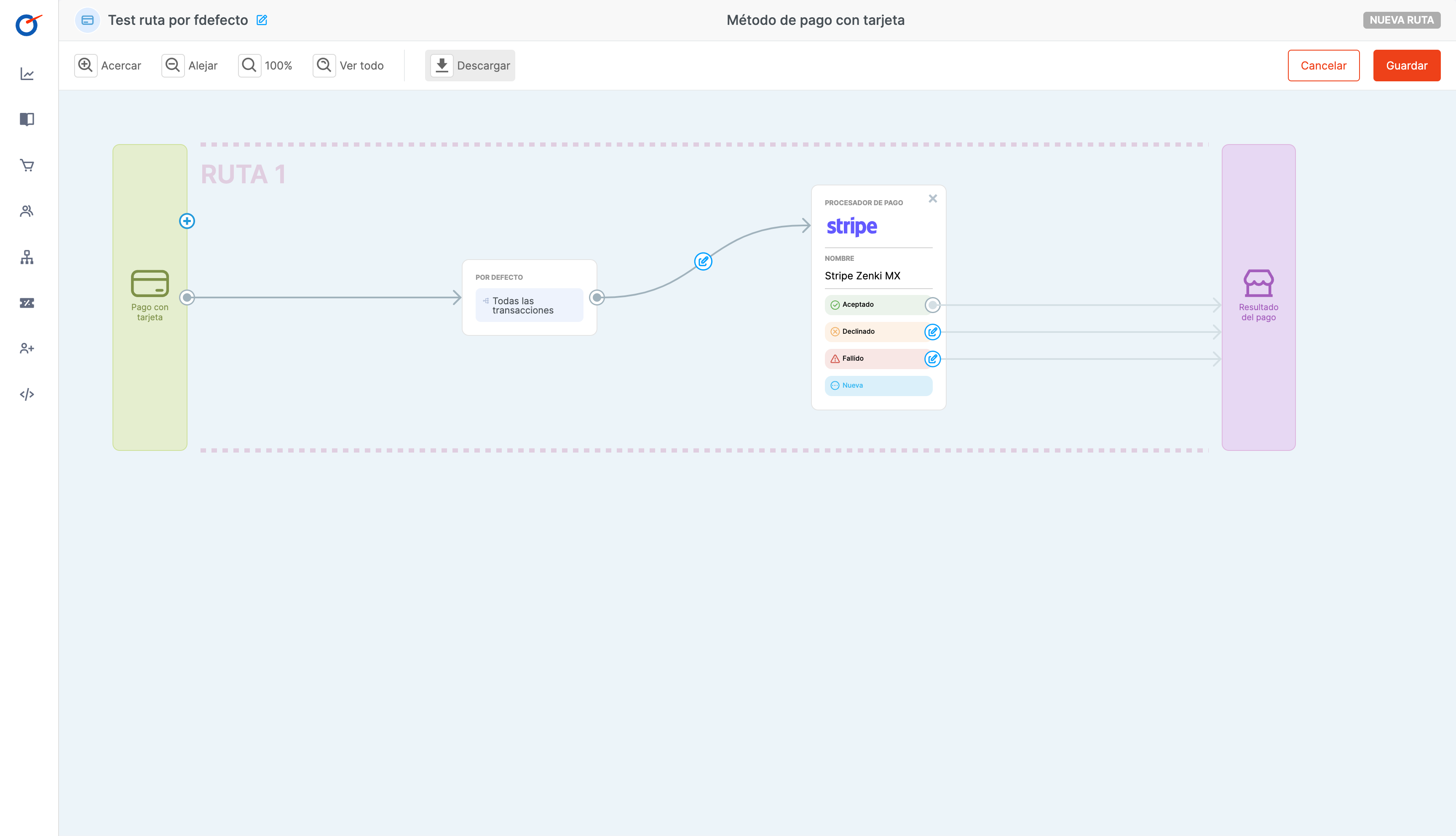
For the purpose of this example, select the "Payment Processor" option, choose the provider you previously configured, and save the changes.
This will become your default route, and all payments will be processed through this configuration. You can always add more routes with specific business rules.
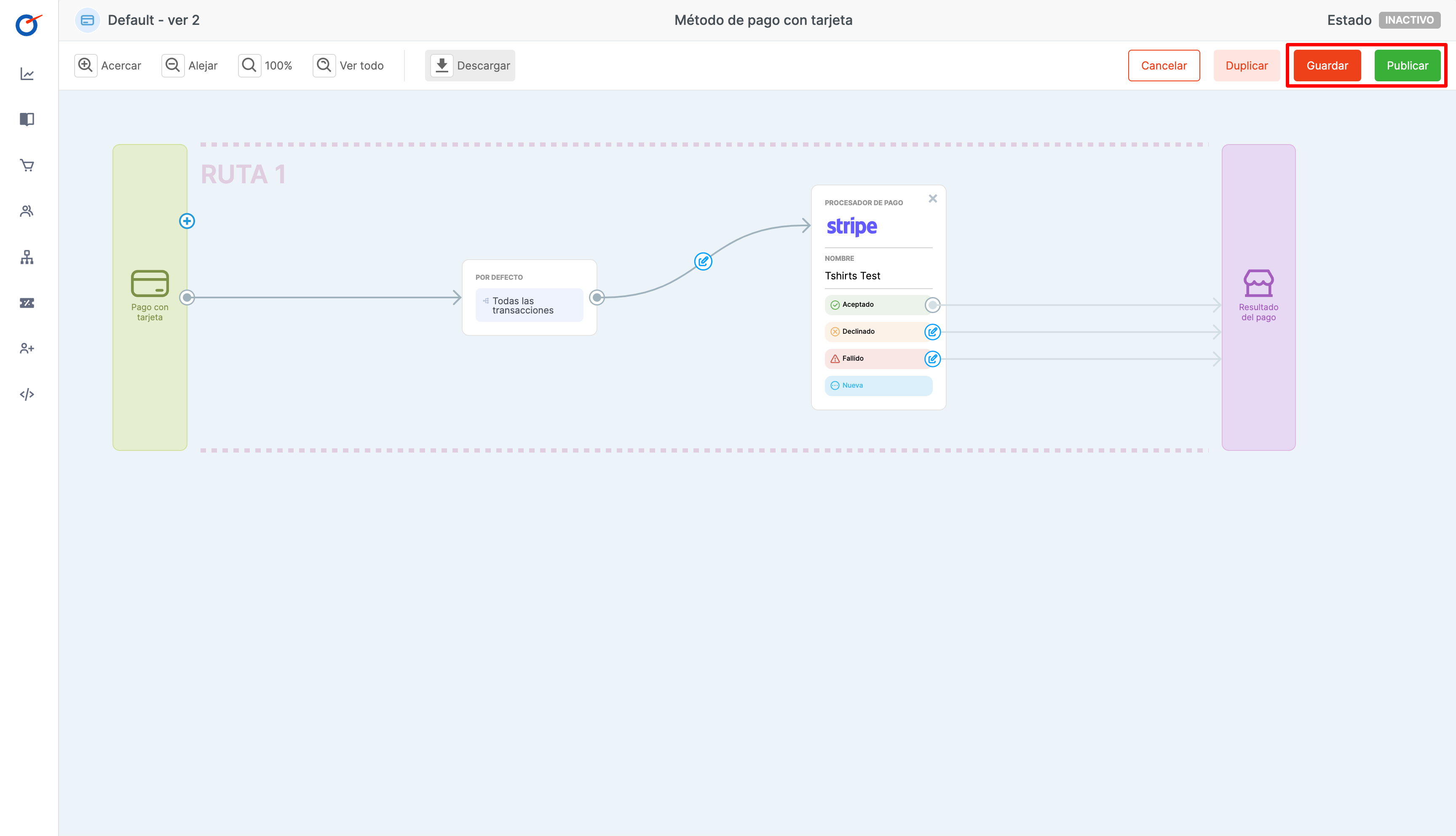
Finally, click the "Save" button and then the "Publish" button.
Updated 4 months ago